RECOMMENDED FOR 5.1 or 7.1 speakers set!
First you would need to have 5.1 or 7.1 speakers. I recommend old good Creative Gigaworks S750 that are still working for me ;)
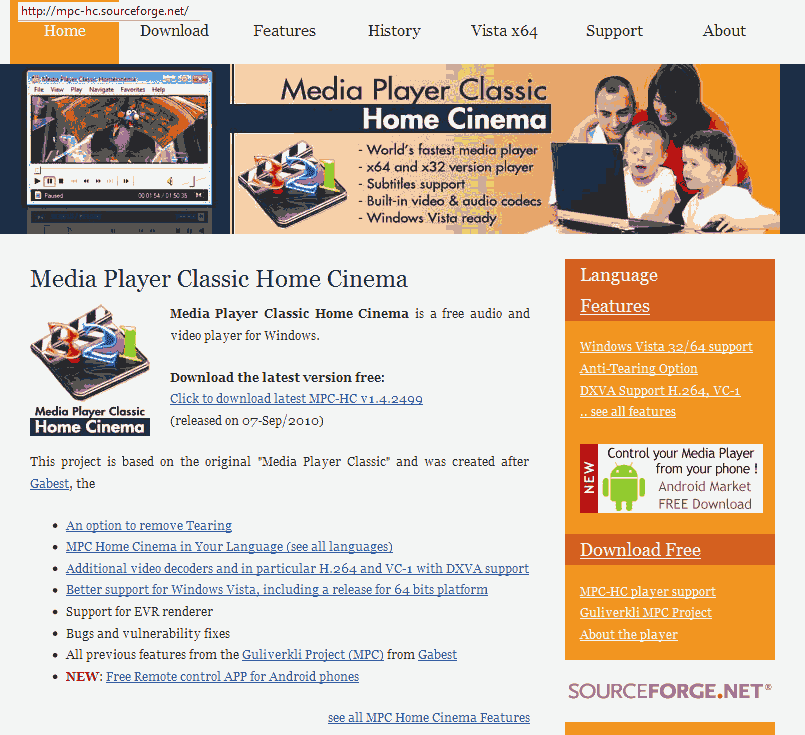
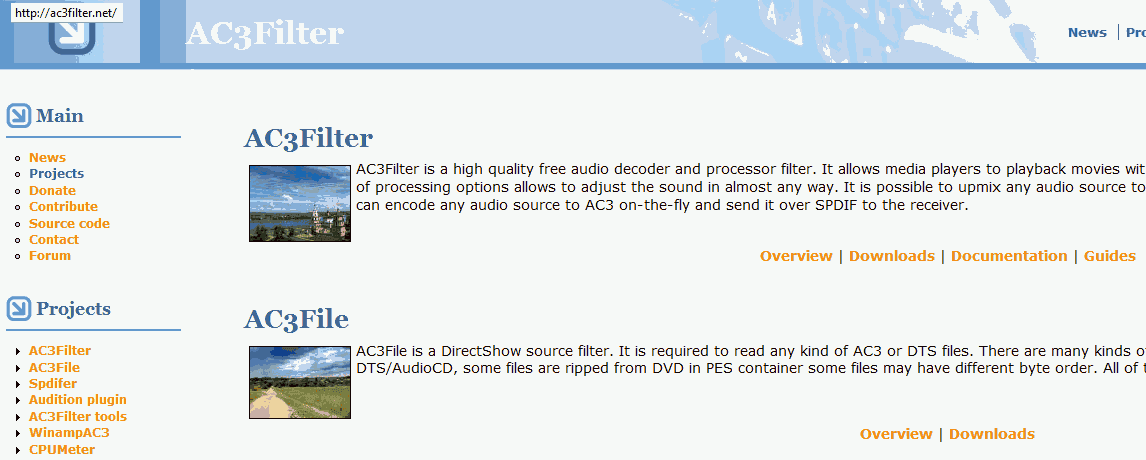
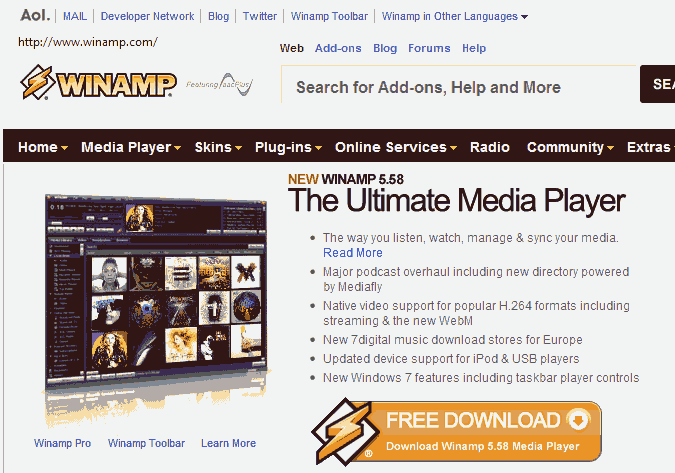
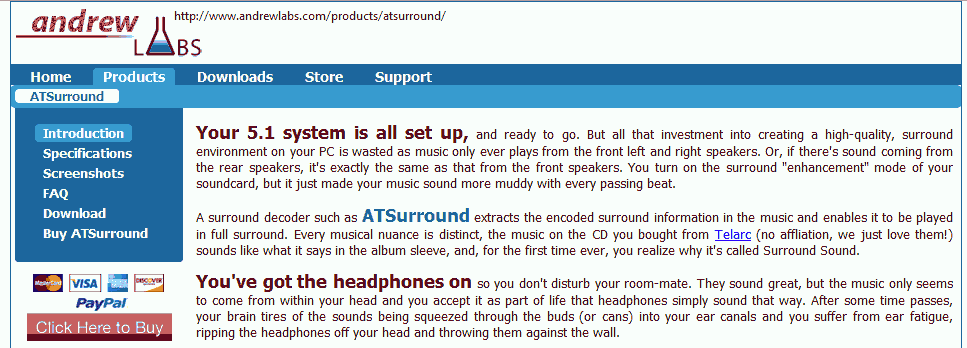
Next step is to download and install Media Player Classic with AC3 filter OR Winamp with AndrewLabs ATSurround Processor (it's payware but there is older, free version on the internet).
Now you navigate to Shoutcast and find yourself an internet radiostation You want to listen to.
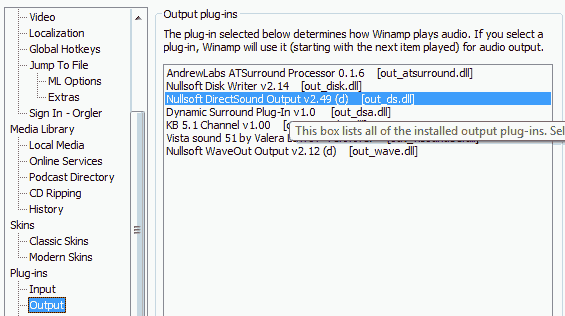
-> If you have winamp installed then it will open itself automatically when you click listen button. After it opens, click right mouse button on its interface and select properties, navigate to Plugins--Output and select AndrewLabs ATSurround Processor. Close settings and press stop and play buttons.
-> If you have MPC Home Cinema and AC3filter installed (better choice in my opionion). Copy radio url from winamp or by using notepad on .pls file downloaded from shoutcast. You may want to try playing pls file in MPC, if it doesn't fail.
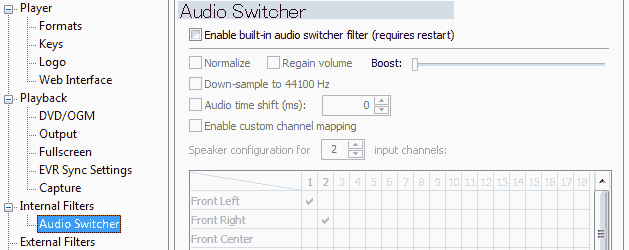
In MPC, go to View->Options menu. Now select Internal Filters---Audio Switcher and UNCHECK Enable built-in audio switcher filter. Restart playing sound.
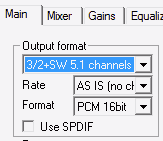
You shuold notice AC3filter icon appearing in taskbar. Double click it. In Main tab there are Output format settings. Select 3/2+SW 5.1 channels from list. Restart playing in MPC.
Vua la! You have now surround sound from your stereo MP3 or internet radio (MAY not work with AACp radio streams - some additional steps may be required).
MPC+AC3filter is better choice in my opinion, because it lets you manually edit Mixing matrix, Bass redirection (I'm using 90 cutoff frequency that works GREAT on my S750). You can as well redirect sound to your Digital output. Shoutcast through digital surround speakers! Hell yeah!
If you have any questions about setting it up, please comment them under this post.
HAVE FUN! ;D
First you would need to have 5.1 or 7.1 speakers. I recommend old good Creative Gigaworks S750 that are still working for me ;)
Next step is to download and install Media Player Classic with AC3 filter OR Winamp with AndrewLabs ATSurround Processor (it's payware but there is older, free version on the internet).
Now you navigate to Shoutcast and find yourself an internet radiostation You want to listen to.
-> If you have winamp installed then it will open itself automatically when you click listen button. After it opens, click right mouse button on its interface and select properties, navigate to Plugins--Output and select AndrewLabs ATSurround Processor. Close settings and press stop and play buttons.
-> If you have MPC Home Cinema and AC3filter installed (better choice in my opionion). Copy radio url from winamp or by using notepad on .pls file downloaded from shoutcast. You may want to try playing pls file in MPC, if it doesn't fail.
In MPC, go to View->Options menu. Now select Internal Filters---Audio Switcher and UNCHECK Enable built-in audio switcher filter. Restart playing sound.
You shuold notice AC3filter icon appearing in taskbar. Double click it. In Main tab there are Output format settings. Select 3/2+SW 5.1 channels from list. Restart playing in MPC.
Vua la! You have now surround sound from your stereo MP3 or internet radio (MAY not work with AACp radio streams - some additional steps may be required).
MPC+AC3filter is better choice in my opinion, because it lets you manually edit Mixing matrix, Bass redirection (I'm using 90 cutoff frequency that works GREAT on my S750). You can as well redirect sound to your Digital output. Shoutcast through digital surround speakers! Hell yeah!
If you have any questions about setting it up, please comment them under this post.
HAVE FUN! ;D

 Posts
Posts

